Aoralscan Elite Guide For Pre Op Model Crown Prep
This guide will help you do the following.
- Open your scanner software, create a patient and start your restoration case with Pre Op Model Scan
- Scan both arches
- Create a dig hole and scan post prep
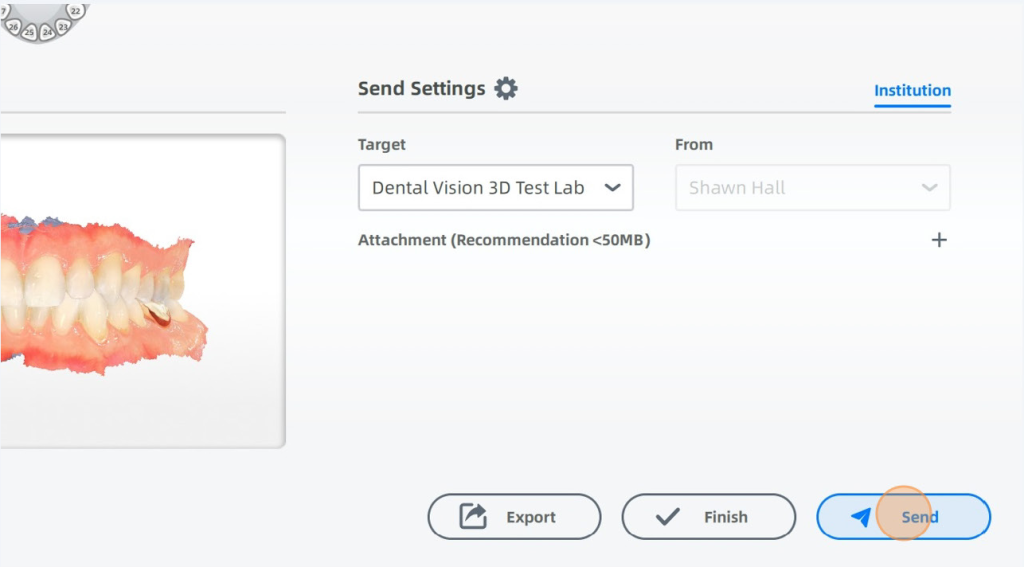
- Send scans to lab
You can also watch the helpful training video here.
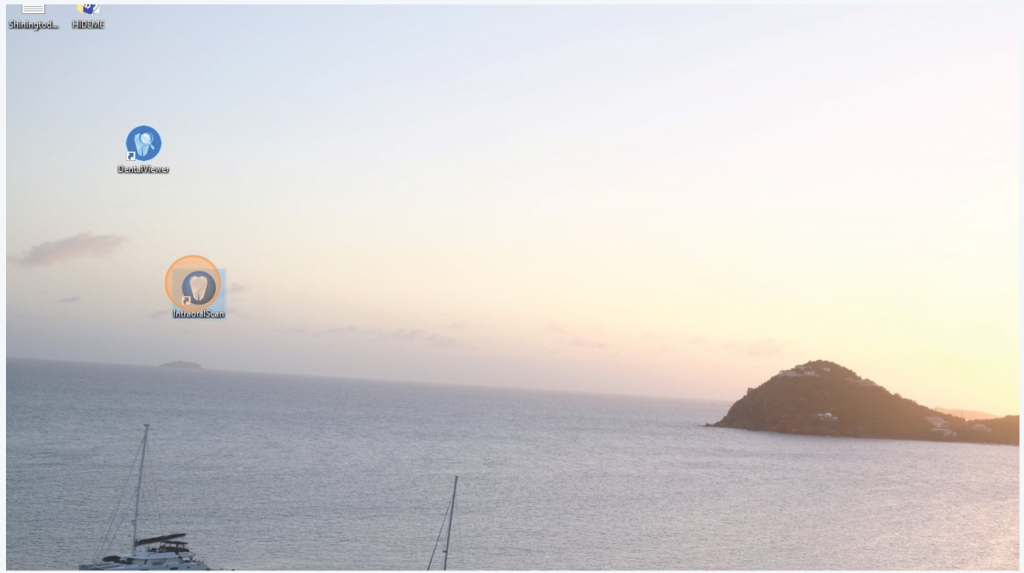
Taking an intro scan with the Aoralscan Elite. First, open your intraoral scan software.
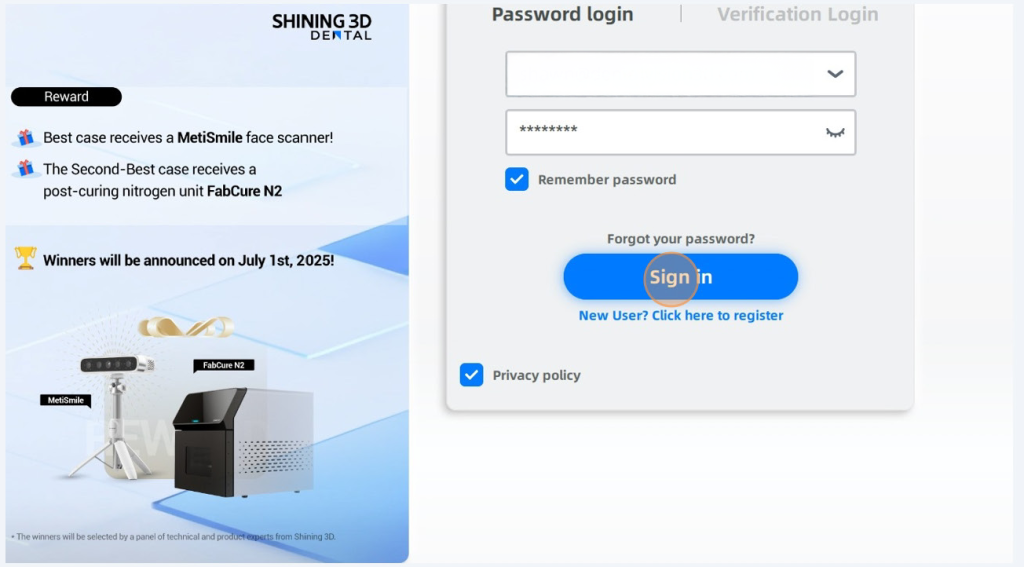
Enter your username and password – Then Click Sign In
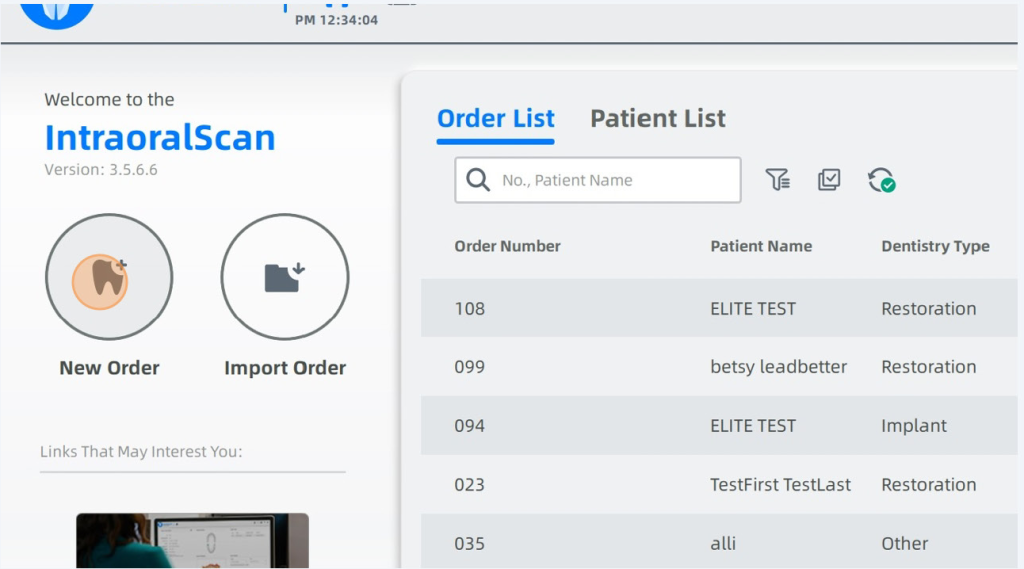
Now click “New Order”
Type in your patient name.
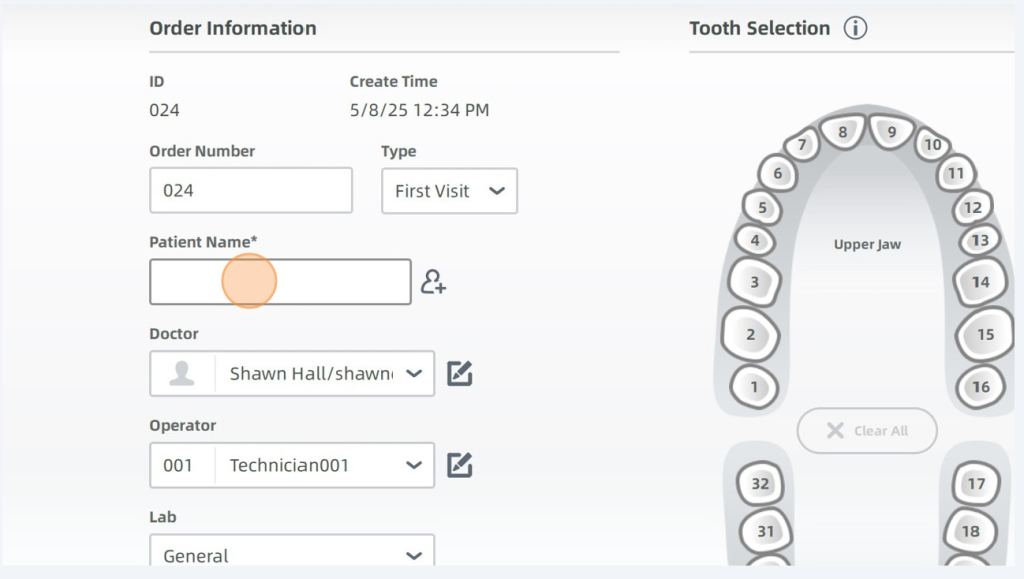
If no related patients are found, add new patient.
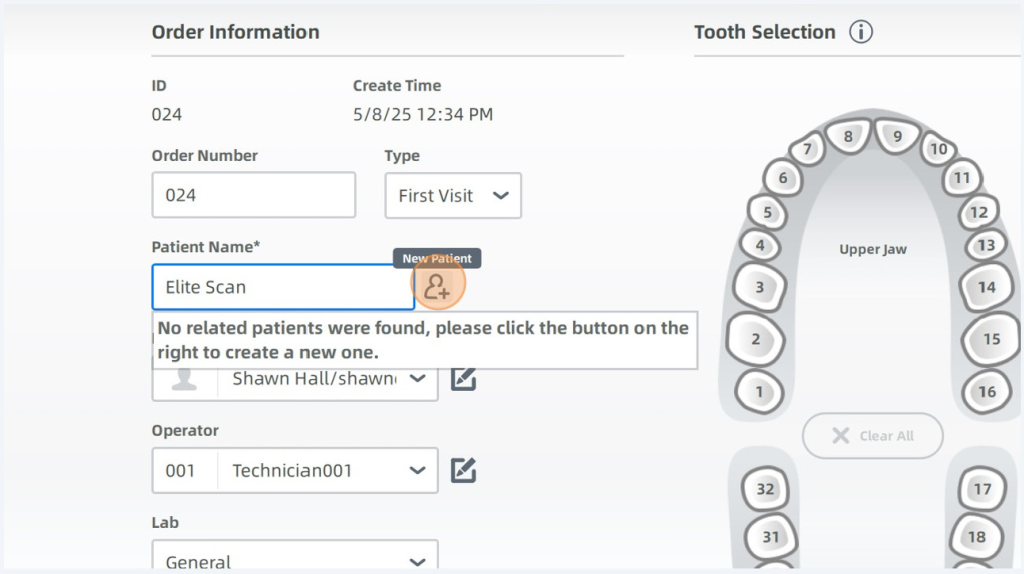
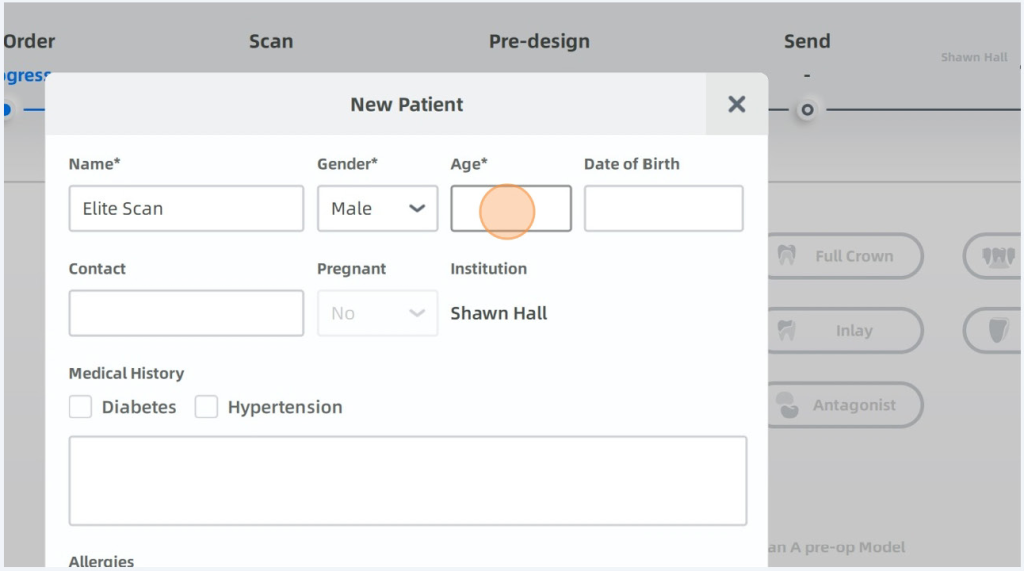
Enter Patients Name, Gender and Age required DOB optional
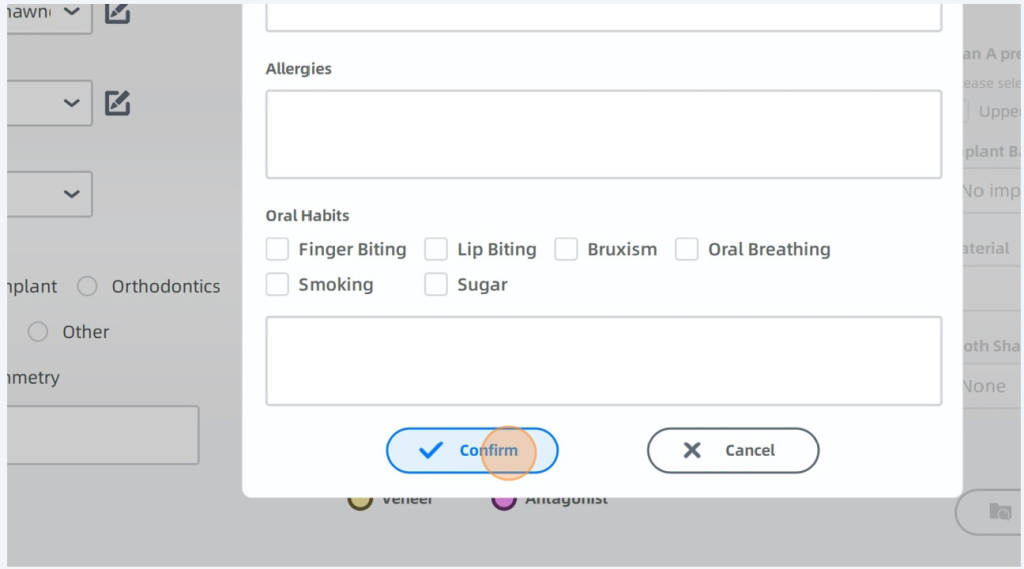
Click Confirm When Done
Now choose what procedure you’re doing. Restoration is selected.
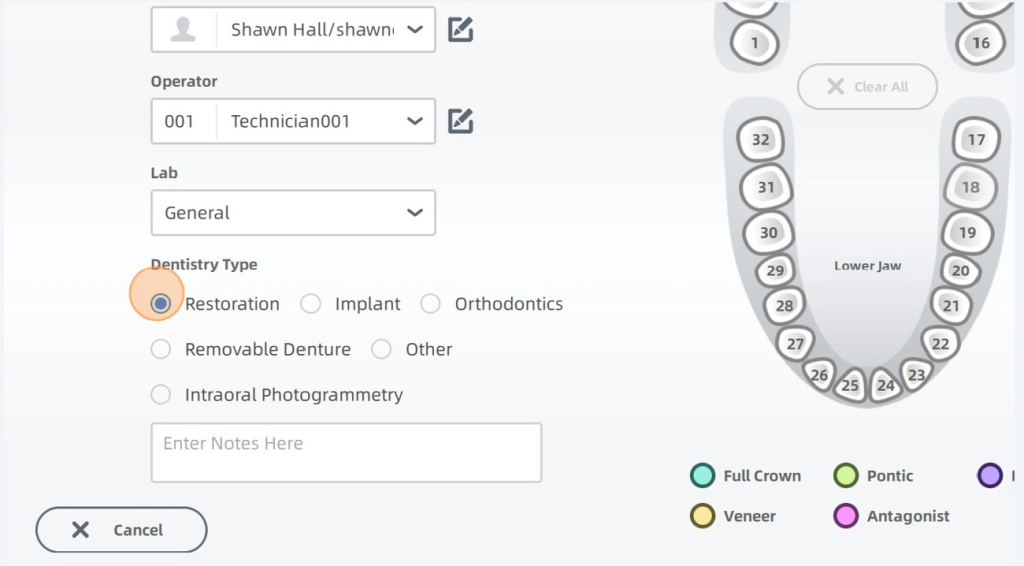
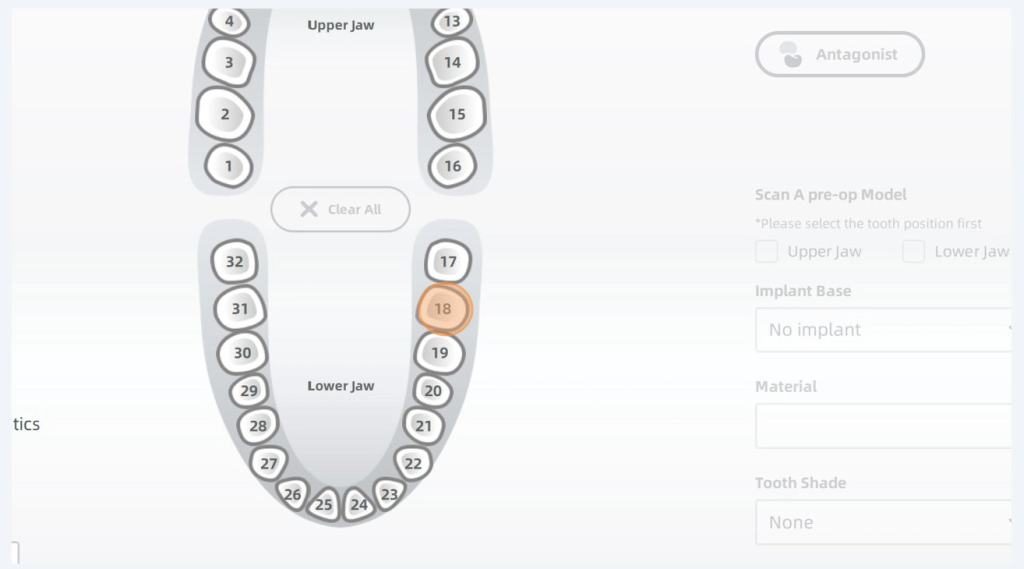
Select the tooth number for the restoration
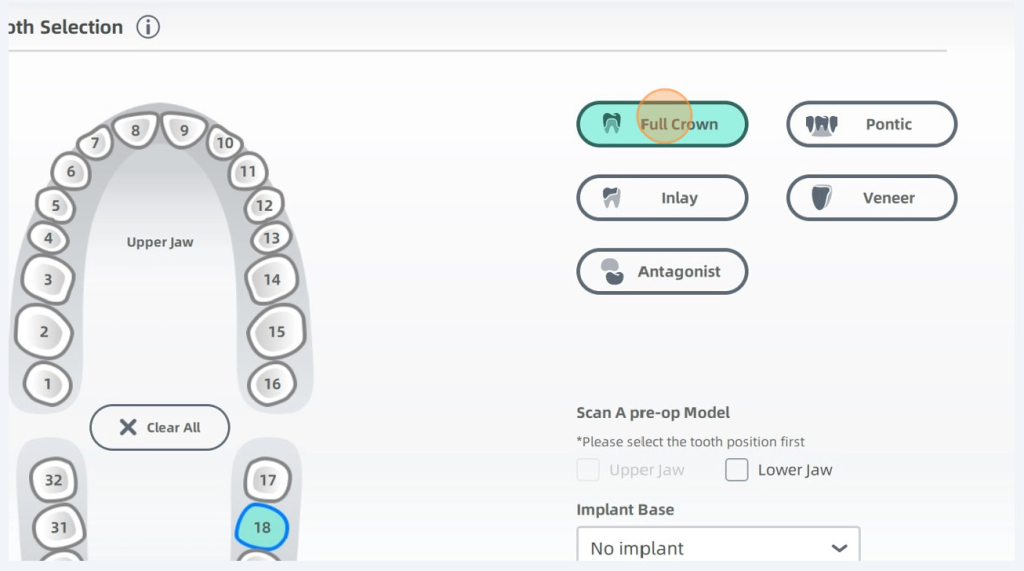
This scan is for a full crown
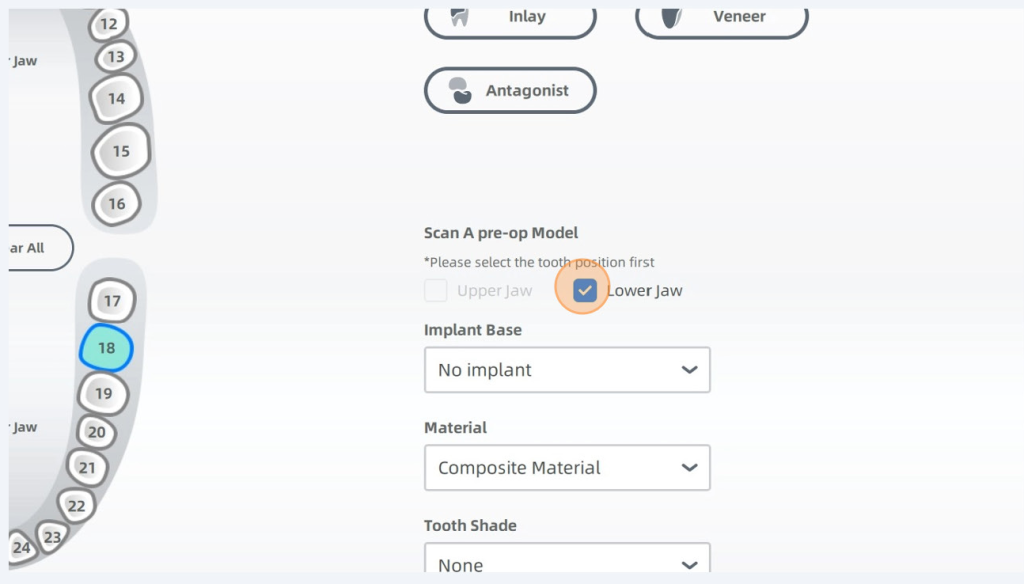
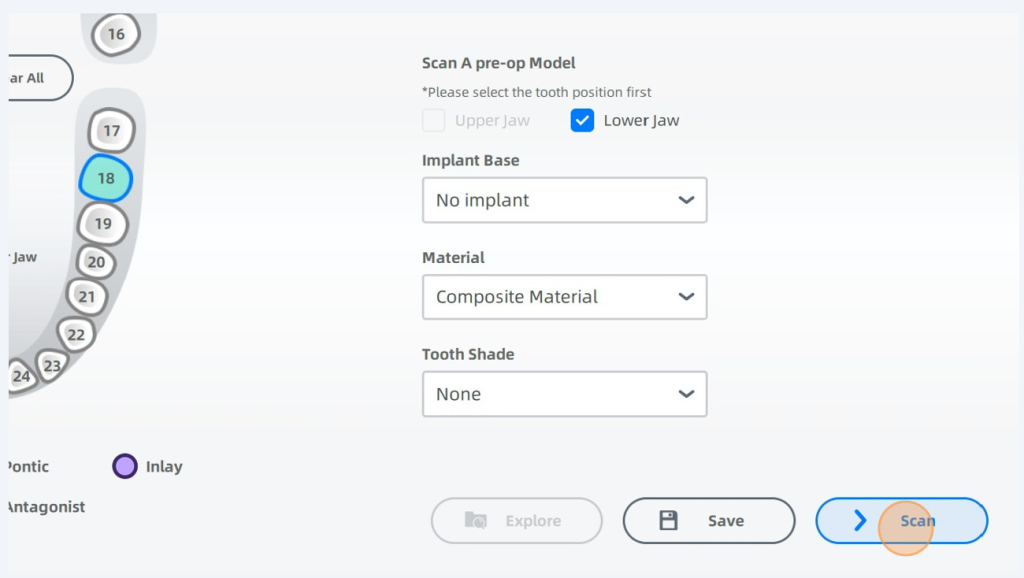
Now select a pre-op model based on arch you are doing, in this case we are selecting lower jaw where our restoration is.
Then we will click Scan
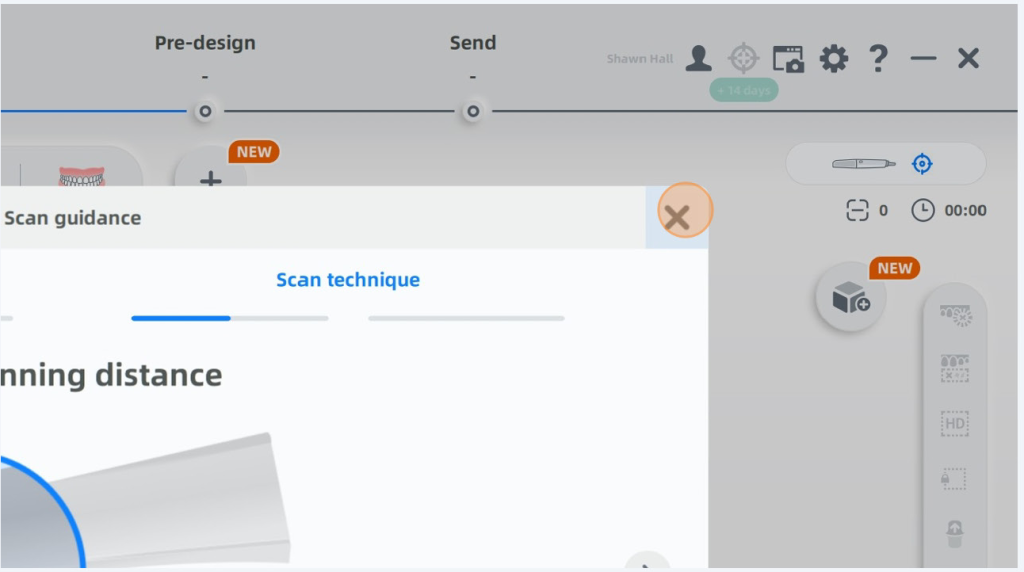
Initially a scan tutorial will pop up, you can close this by clicking X.
You can see it gives guidance if you need to do additional scans, which you should not need to do.
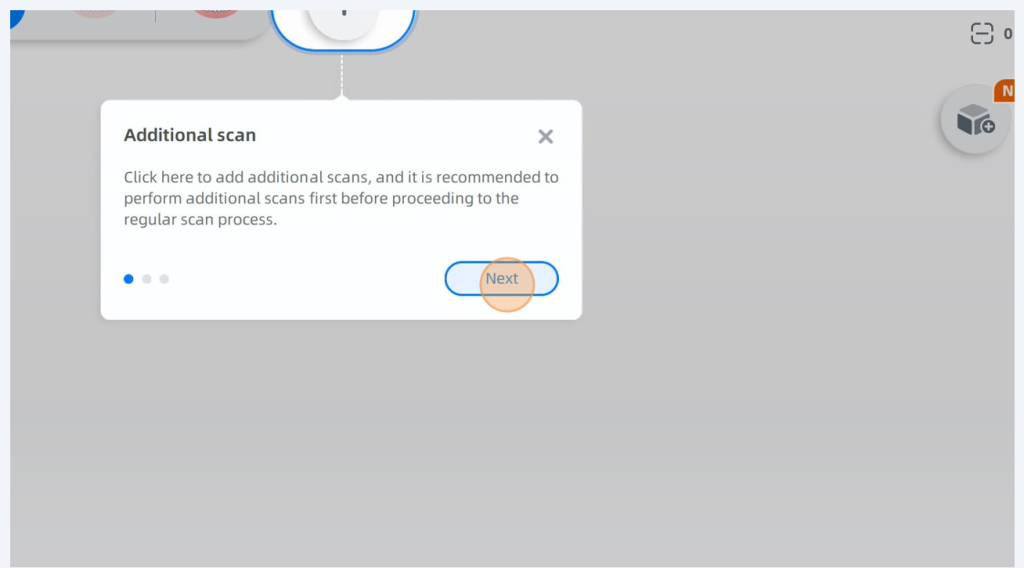
Click next through the tutorial. This tutorial pops up the first time you use the new version.
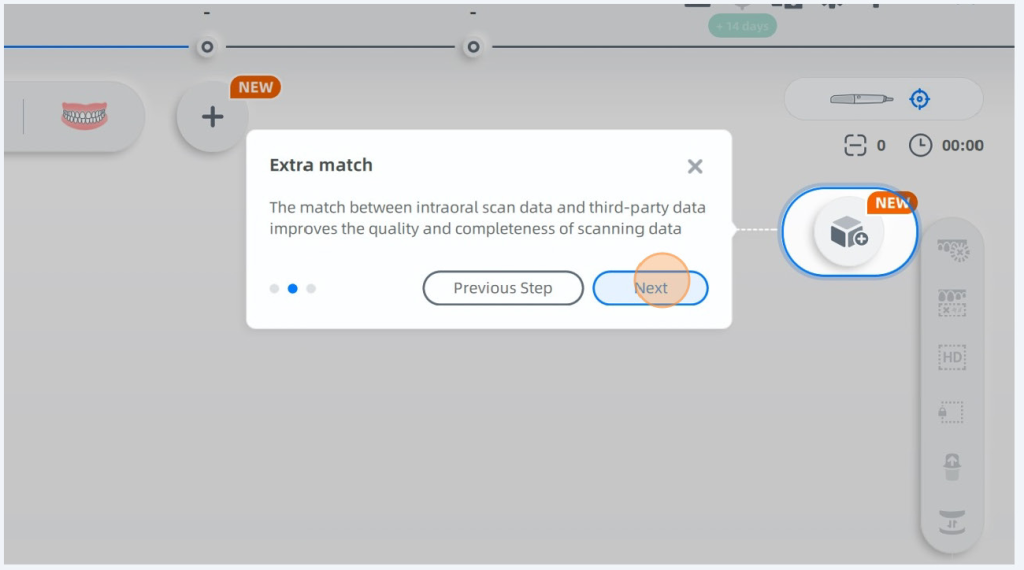
Click got it to end the update notifications about new features
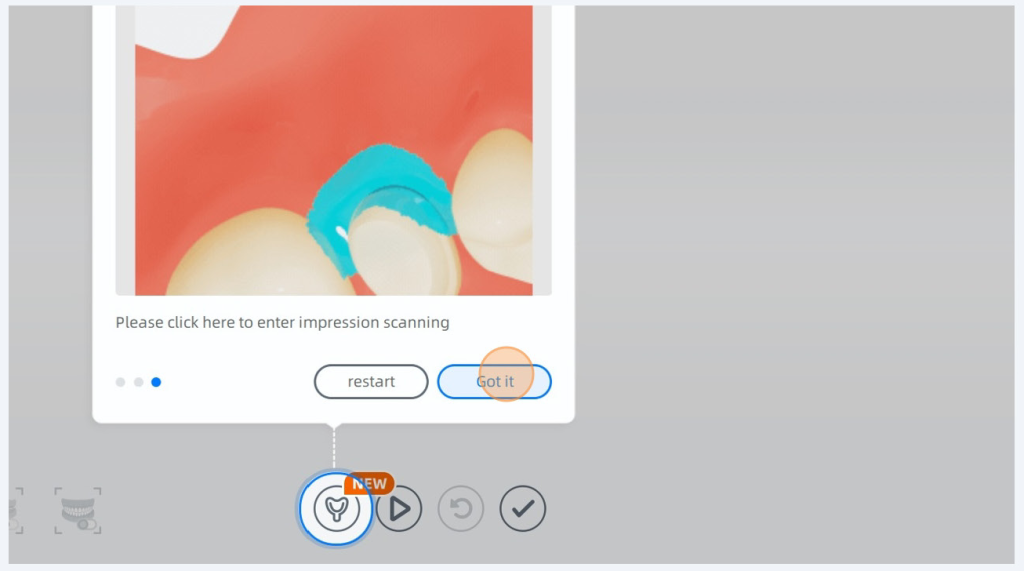
Press the top button on your elite to begin scanning, and you’ll see a reticle (red square) pop up on your screen. The software may notify you that your AI is turned off, if so click your scanner button to pause the scan and then click this button in the software that is highlighted to turn on your AI.
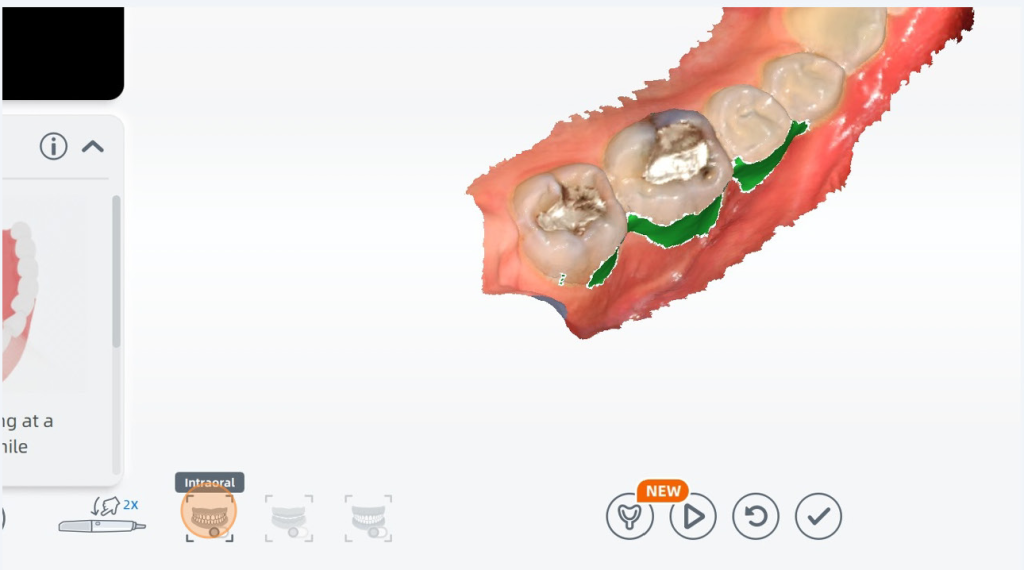
With the scan paused you can review the scan by using the left mouse button to TILT and the center mouse wheel button to PAN, and roll your mouse wheel to ZOOM
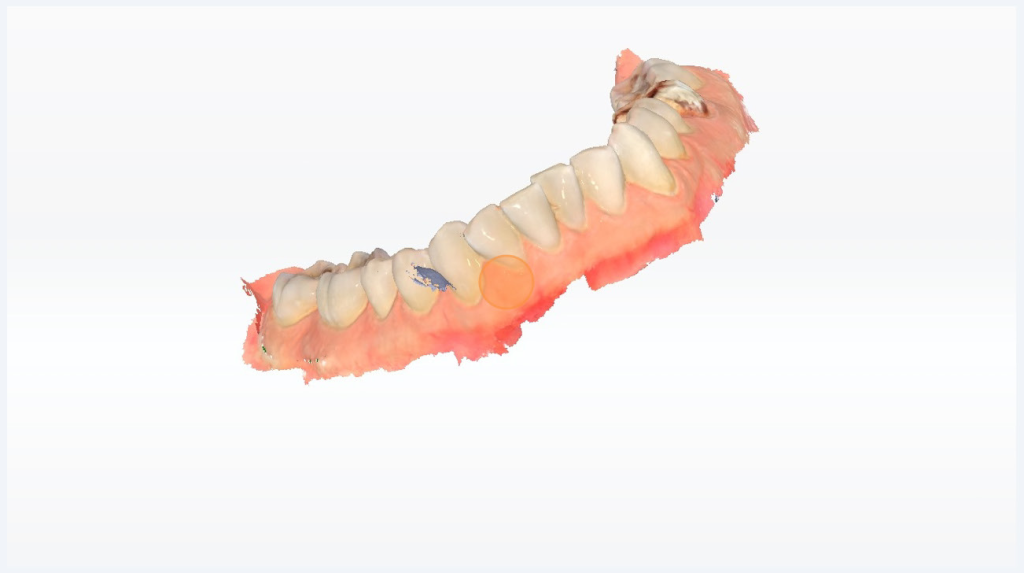
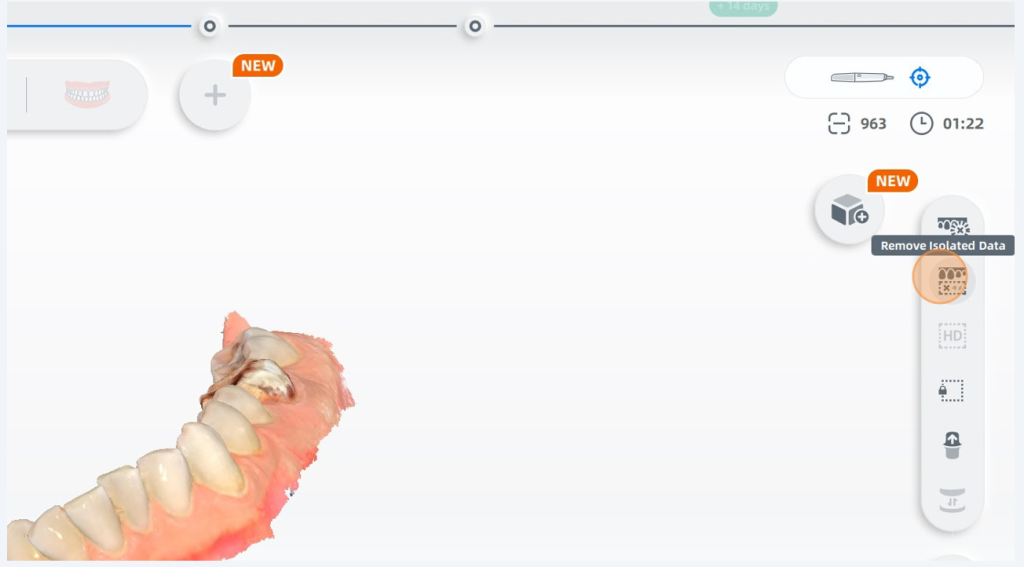
My scan had some artifacts from scanning without AI on, I can remove it easily by clicking the remove isolated data button.
Any areas marked in green can be filled in with scan data by unpausing your scanner and scanning over the area again.
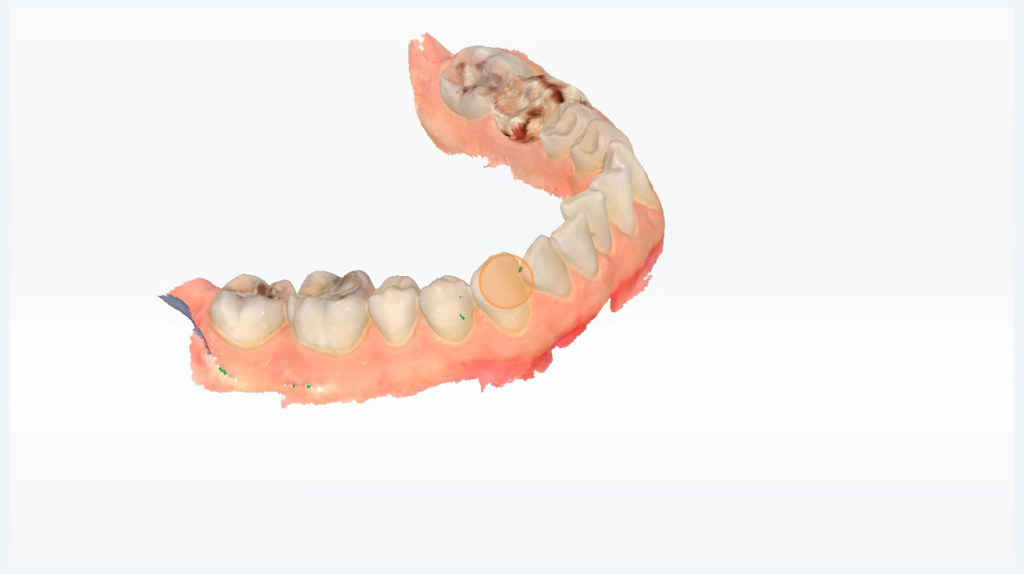
Lower arch is complete. I will now hit the finish check mark.
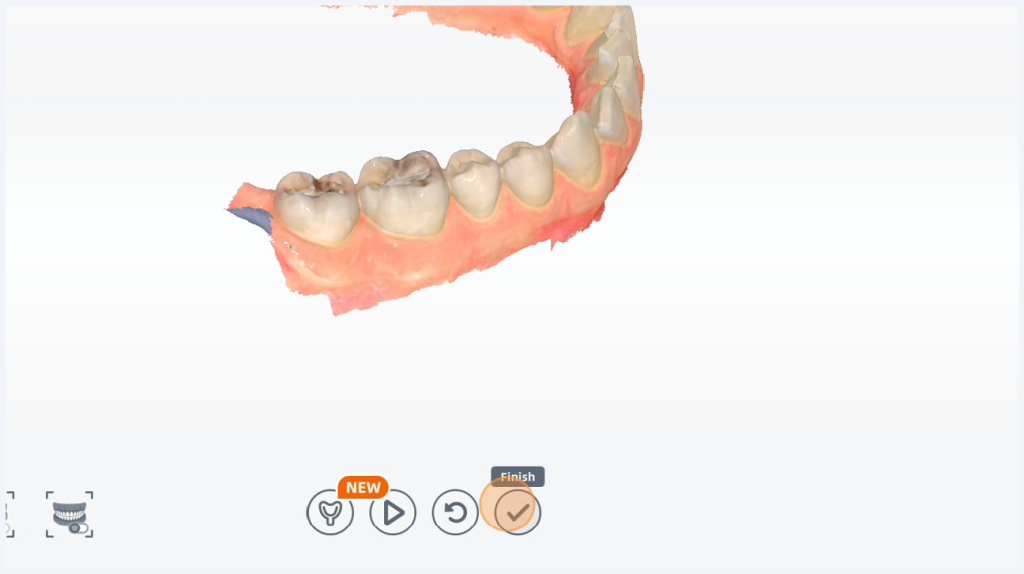
Now it’s asking for the upper arch. I can hit the play button, or I can click the button on my scanner to start scanning the upper arch. Pause your scan and review it, unpause to fill in any missed data.
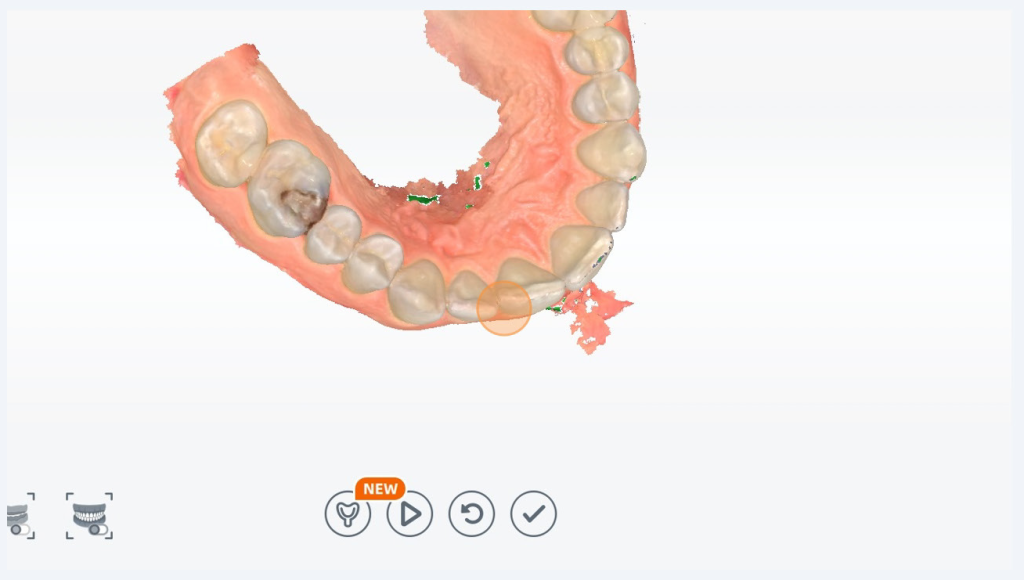
Once you are done scanning click Finish
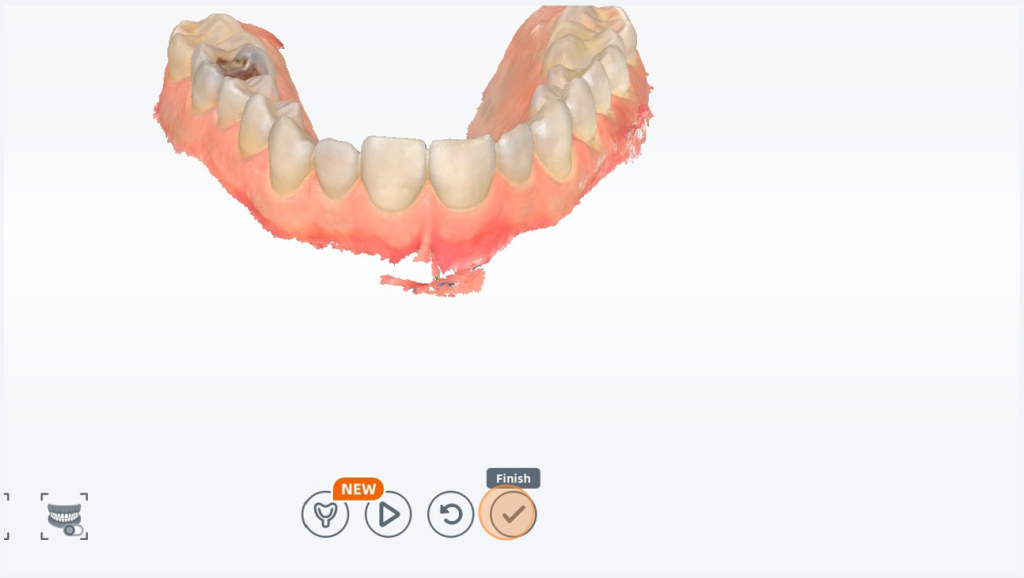
Feel free to close any of the pop up tutorials with the X button, there is also a checkmark on the screen you can choose to never see the tutorial again.
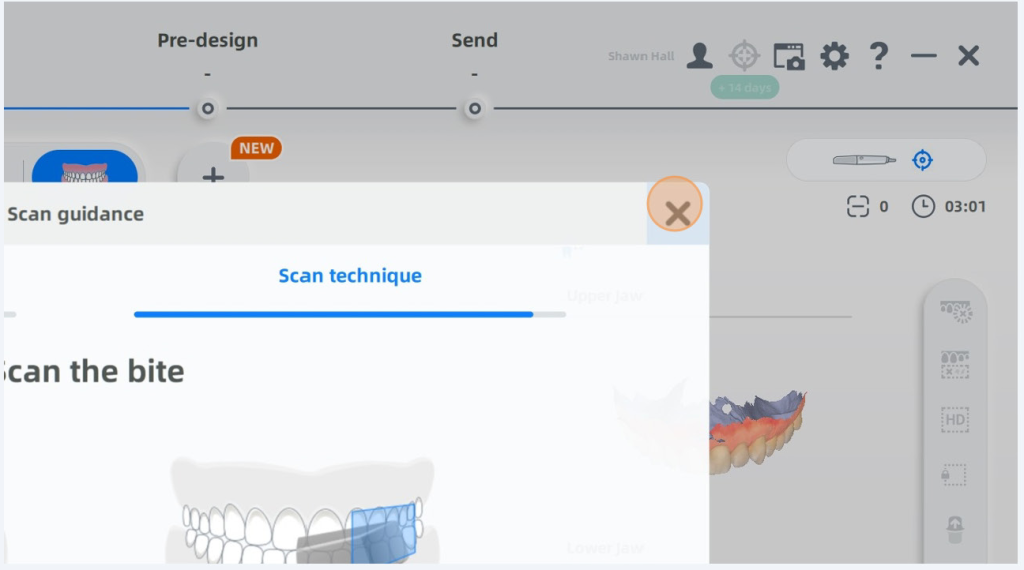
You are ready to take your first bite scan. Enter the scanner into the buccal space on the side of the mouth shown in the image and click the camera start button with the patients mouth fully closed to get the best bite data. When you see the animation of the Upper Jaw and Lower Jaw coming together you have enough bite data, click the camera button again to pause the first bite scan it will automatically move onto the second scan.
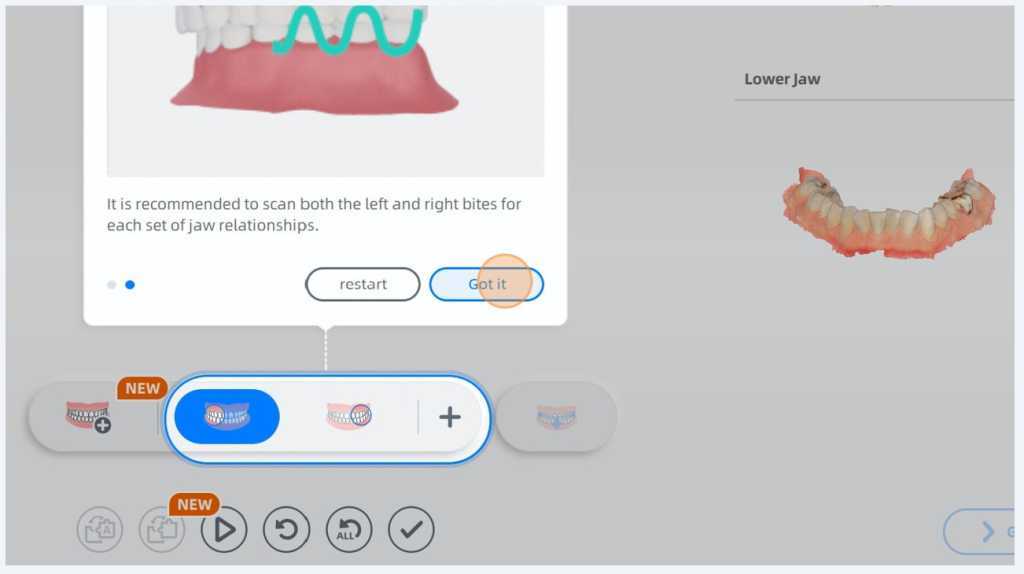
Insert the camera into the buccal space on the correct side of the mouth as seen in the image on the computer screen. Then press the start button on the top of the camera to start the second bite scan. When both the upper and lower jaws come together press the scanner button again to pause the bite scan. Then click Finish.
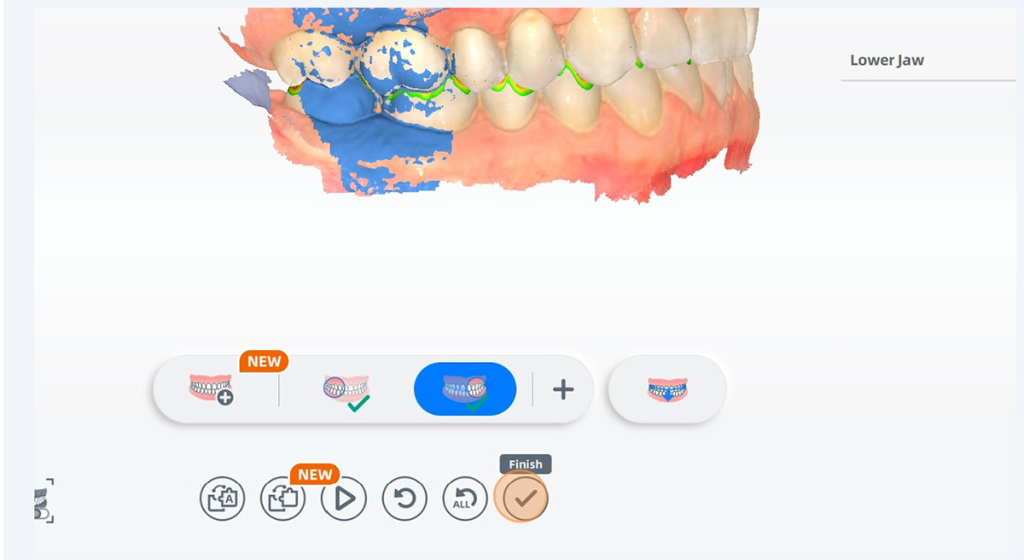
Now we have moved onto preparing for the post prep scan. We need to make a hole in the scan where the pre prep scan has a tooth.
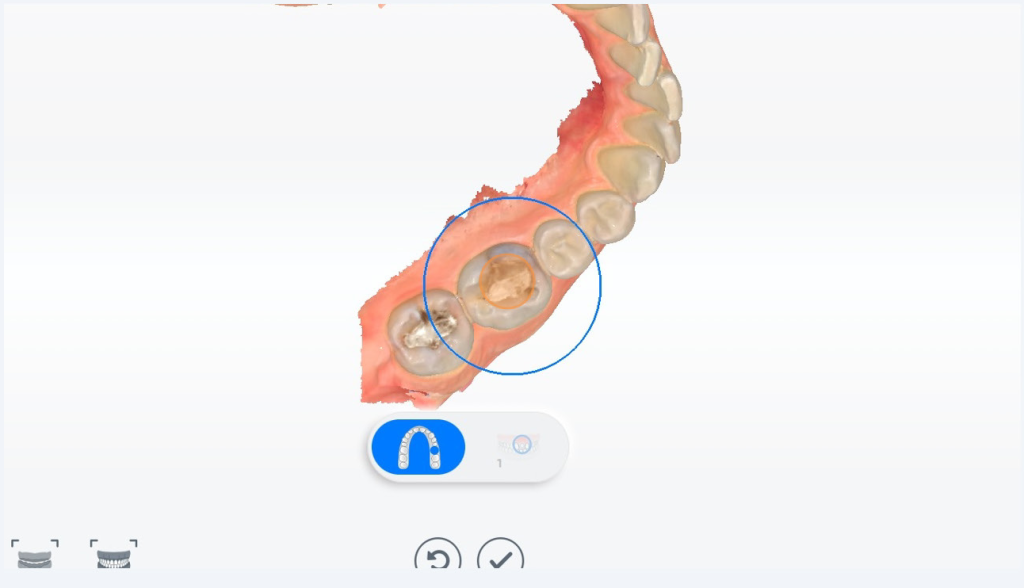
Move the scan around by using the left mouse button to TILT and the center mouse wheel button to PAN, and roll your mouse wheel to ZOOM
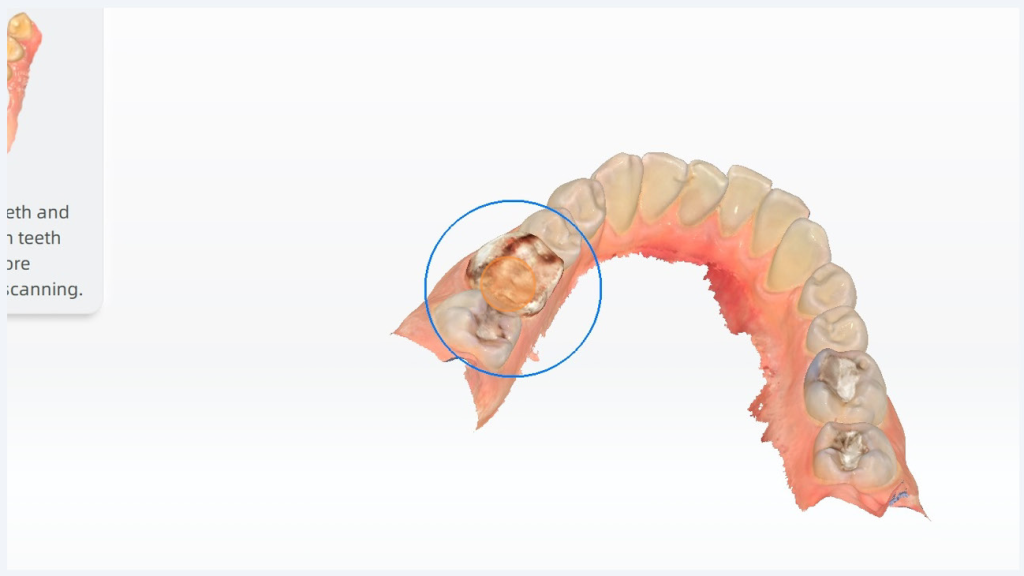
Move the scan until the blue circle is larger than the entire tooth you have prepped. Then double click
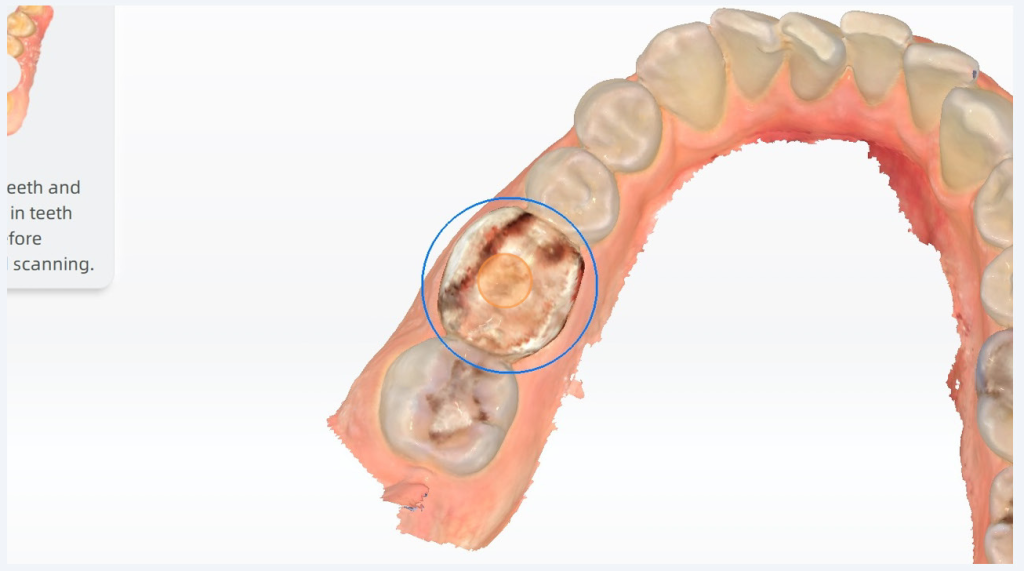
Now you have a hole in the scan. Click Finish.
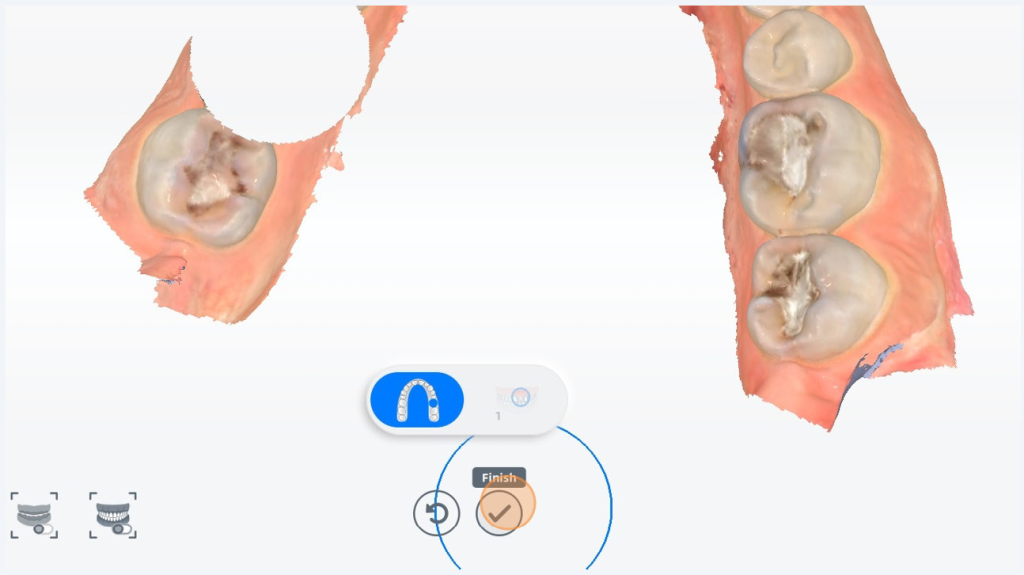
Now close the scan guidance.
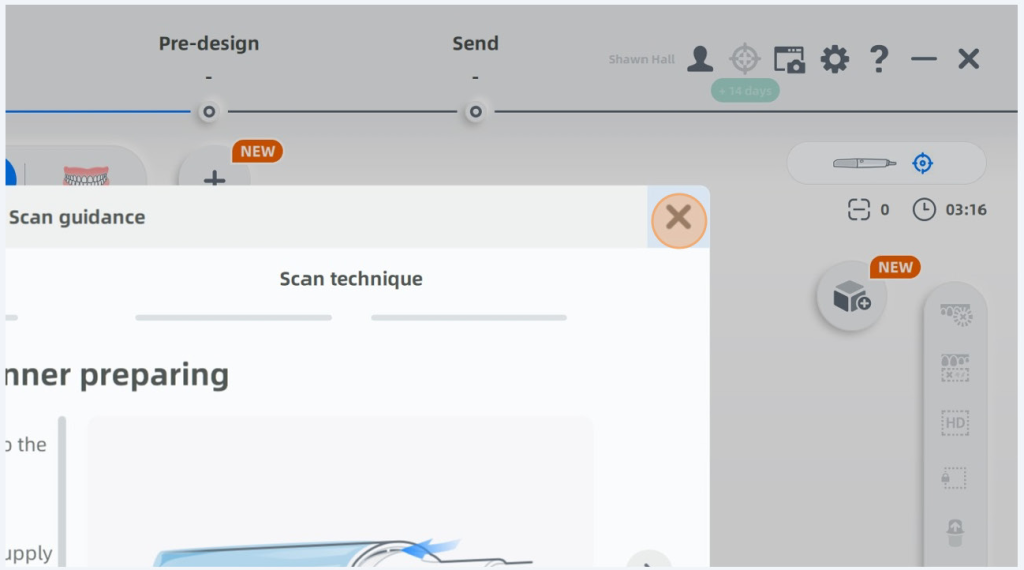
Press the scanner button to start scanning and scan in the prep. Click the scanner button again to pause the scanner. Then click Finish.
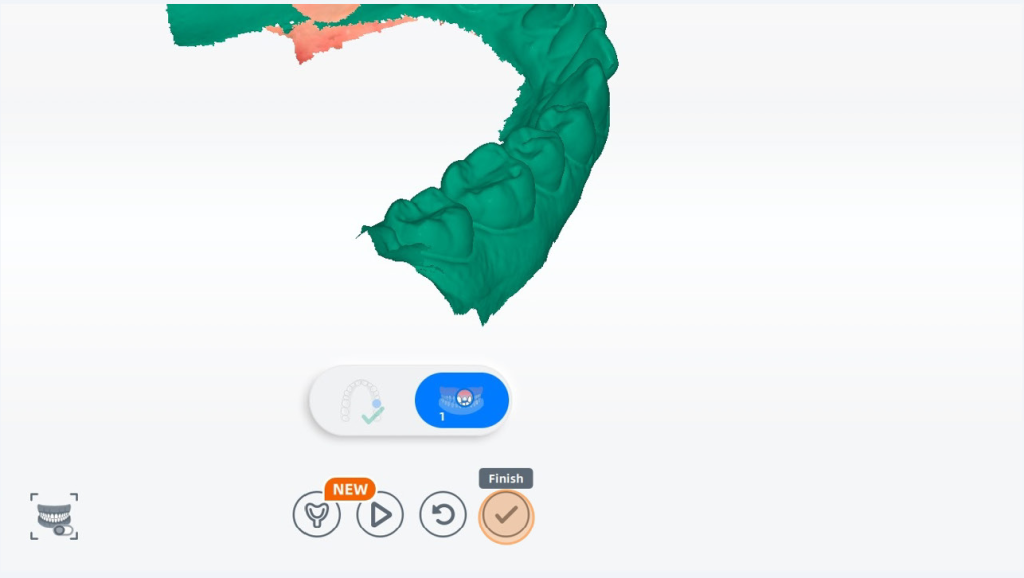
The software will now optimize the scan models, this can take a couple of minutes.
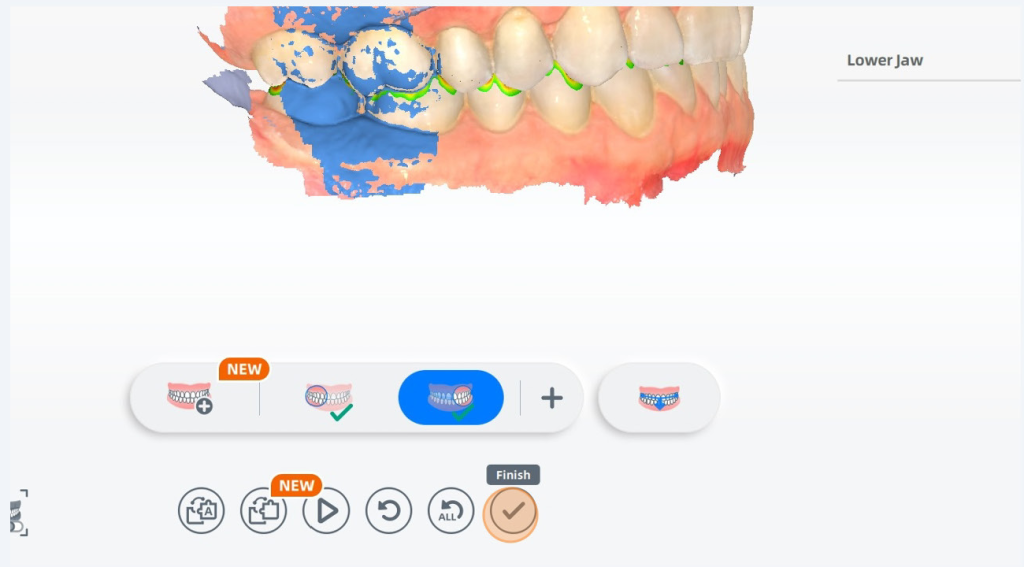
Review your bite data here.
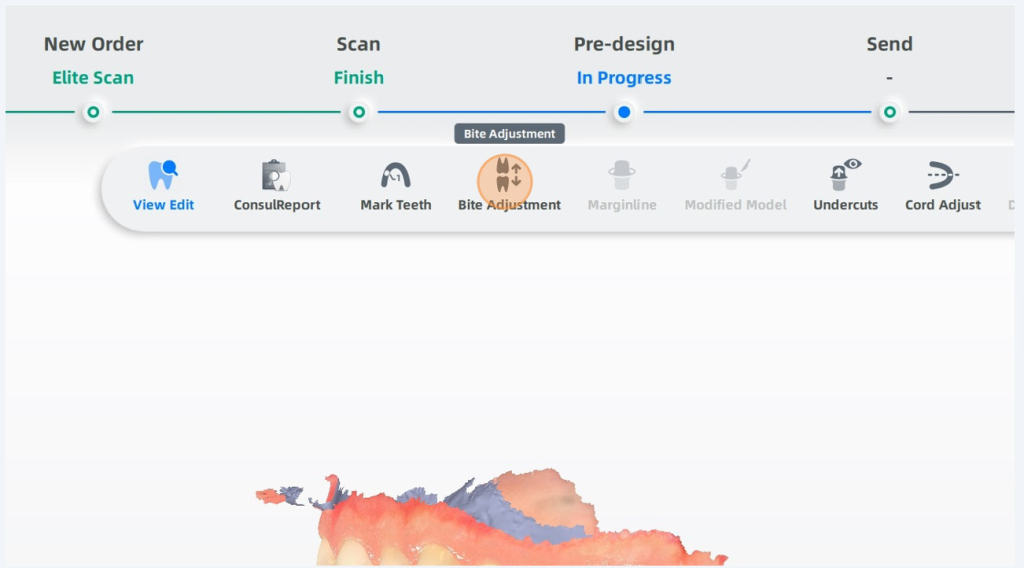
Click Open to see contact points
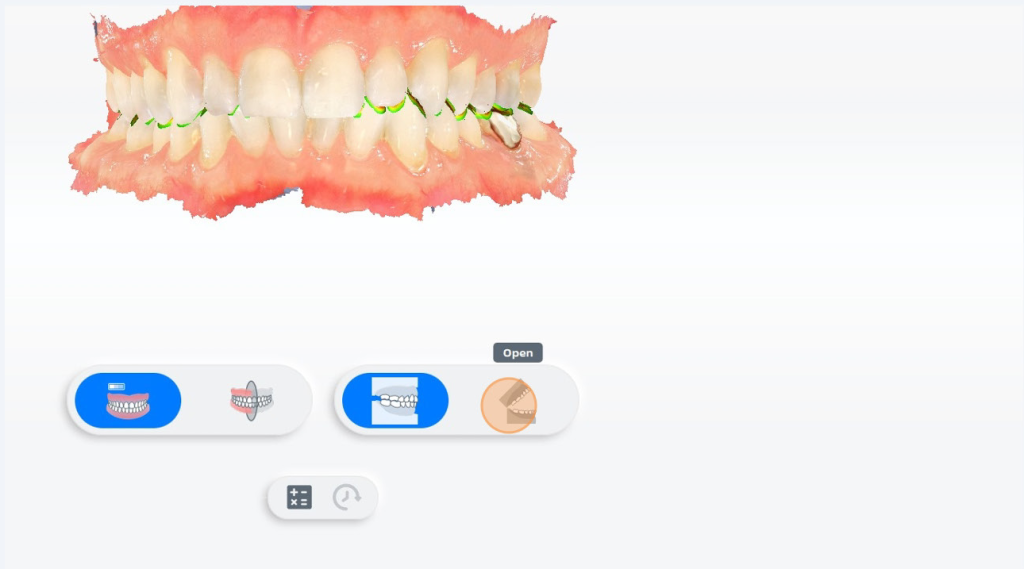
You can review contact points here.
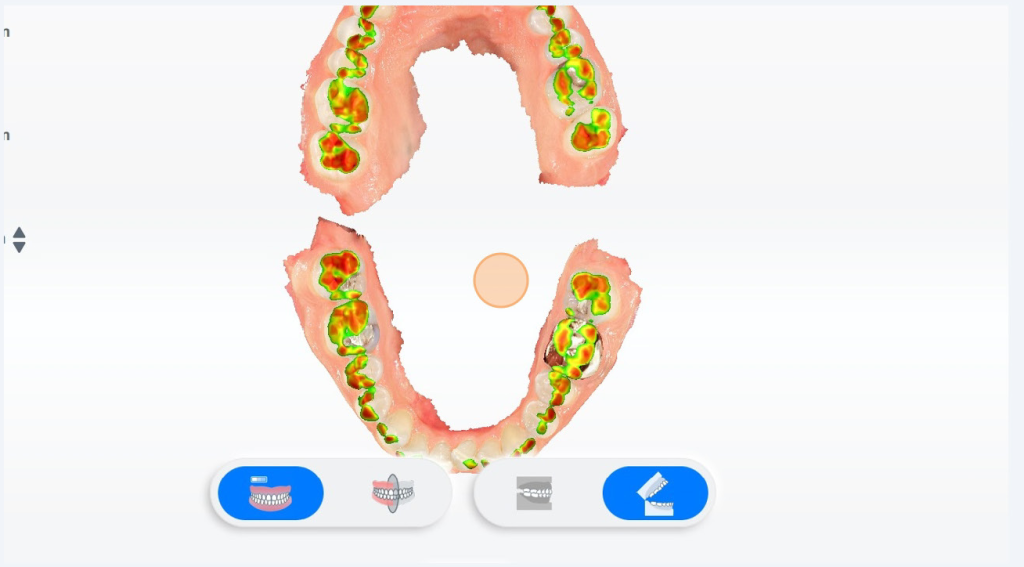
Click Go to send, to send this scan data off to your lab.
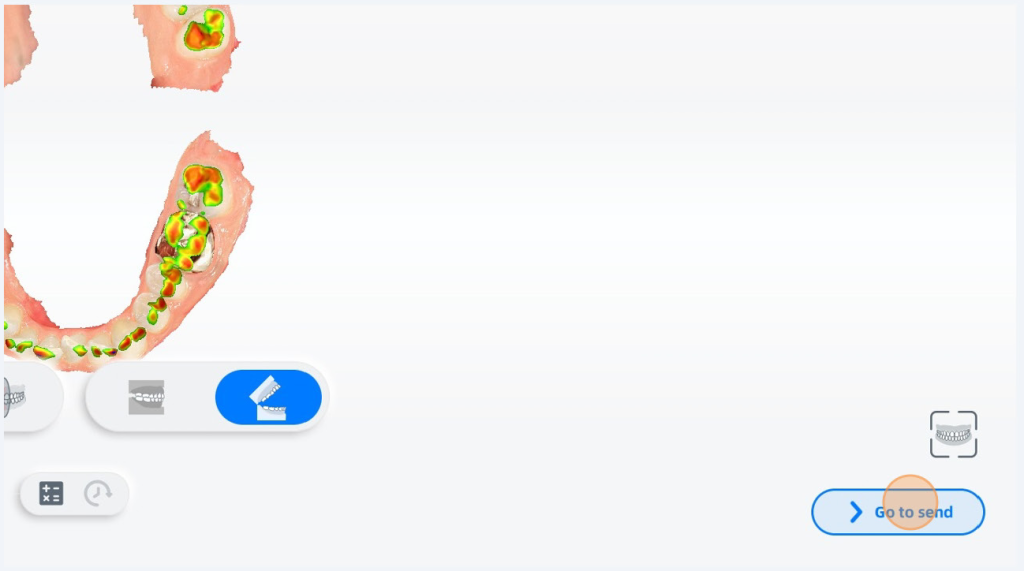
Click the Target drop down to select your lab
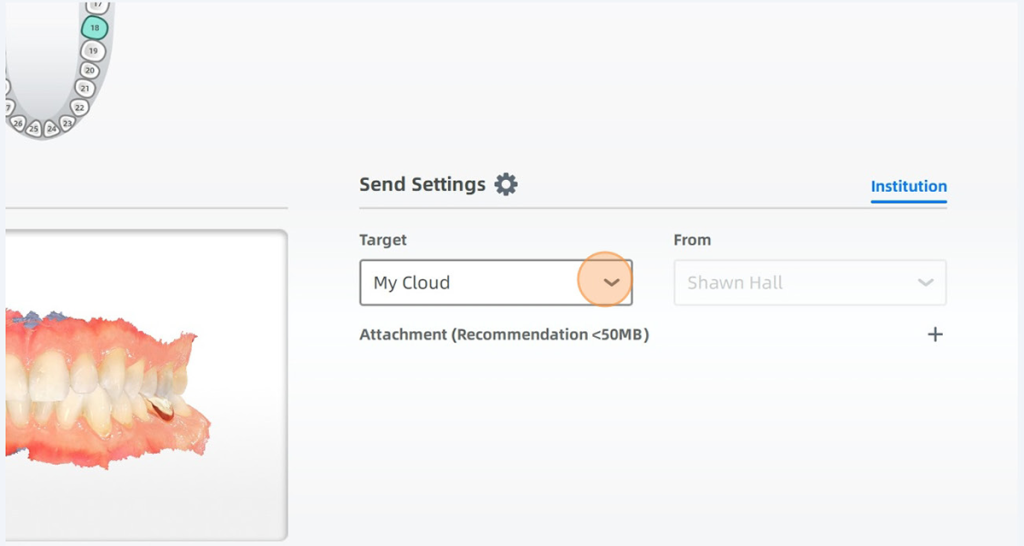
Select the lab you would like to send to.
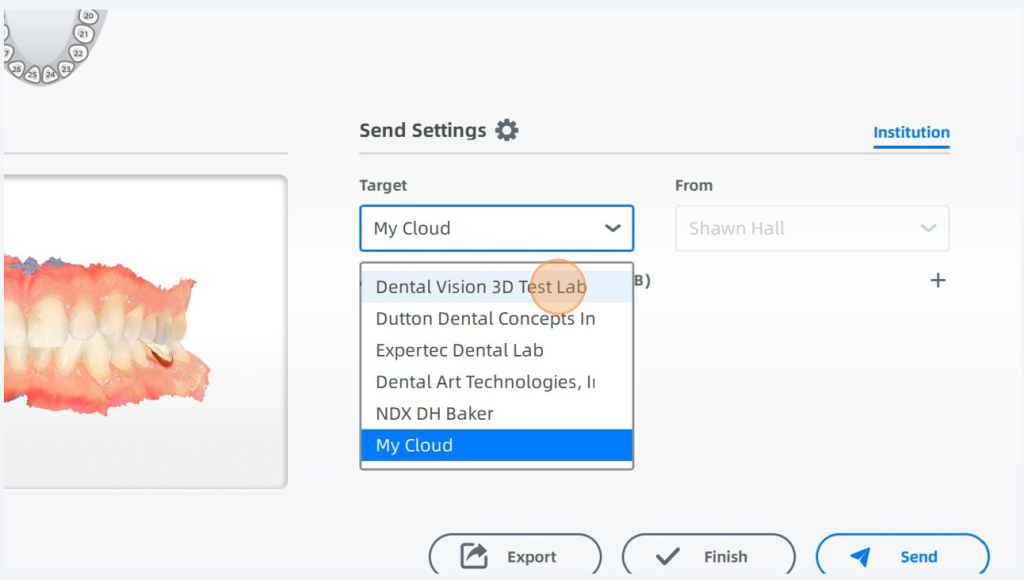
Click send and the scan will be sent to your lab over the shining Cloud, Alternatively you can click export to create a folder filled with the object and STL files from the scan that you can use if you need access to the model files for emailing to a lab or utilizing a labs online portal.